How to Connect Chetto to Claude and Other MCP-Compatible Tools
How to Connect Chetto to Claude and Other MCP-Compatible Tools
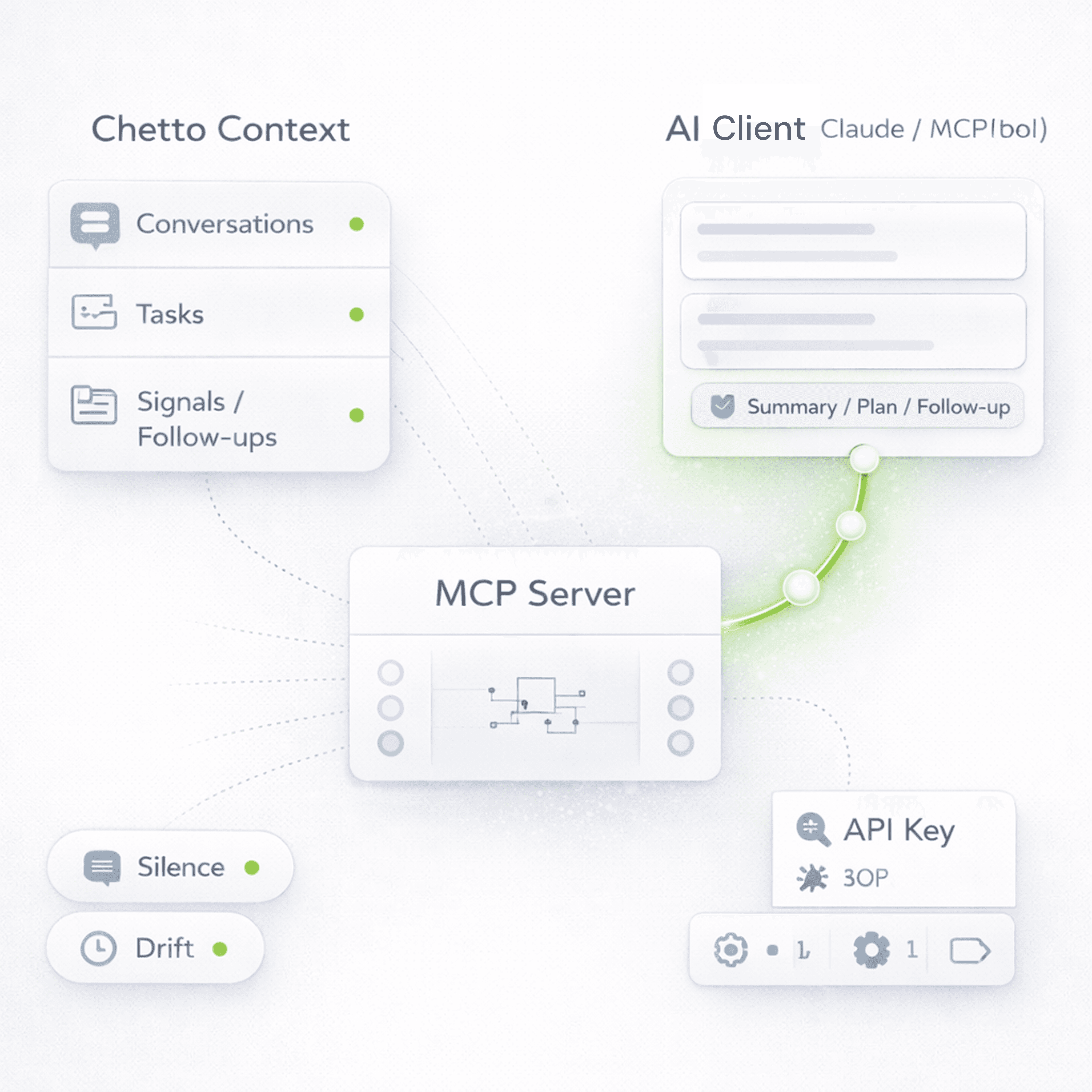
AI tools are becoming a natural part of how teams work.
A team may track conversations, tasks, signals, and follow-ups in Chetto. Then they move to Claude or another AI tool to act.
But that switch often creates a gap.
The AI tool may be powerful, but without the right business context, it is still working with only part of the picture.
That is why we have exposed the Chetto MCP Server.
Why connect Chetto to Claude or other MCP-compatible tools
Chetto helps teams make sense of work that lives inside conversations.
It turns scattered communication into context, structure, and visibility. It helps teams track what matters, understand what is happening, and move work forward with more clarity.
Now that the Chetto MCP Server is available, teams can connect Chetto to Claude and other tools that support MCP.
This means your AI workflow does not have to start from scratch every time. Instead of manually copying information from one product to another, you can connect your MCP-compatible client to Chetto and work with the business context more directly.
What is Chetto MCP Server
Chetto MCP Server lets tools that support MCP connect to Chetto in a structured way.
MCP stands for Model Context Protocol. It is a standard that helps AI tools connect with external products and use their context more reliably.
In simple terms, this allows Claude and other MCP-compatible tools to work with Chetto more directly.
So instead of repeatedly pasting chat history, notes, or business context into an AI tool, you can expose Chetto via MCP and let the tool work with that context more cleanly.
What this helps teams do
When you connect Chetto to Claude or another MCP-compatible tool, you make it easier to bring your Chetto context into the AI workflows you already use.
This helps reduce manual copy-paste. It helps keep work grounded in the right context. It also makes it easier to move faster on analysis, summaries, planning, and follow-up workflows.
The exact experience depends on the MCP client you are using. But the core value remains the same: Chetto becomes easier to access from the tools where AI-assisted work is already happening.
How to enable Chetto MCP Server
Setting up Chetto MCP Server is simple.
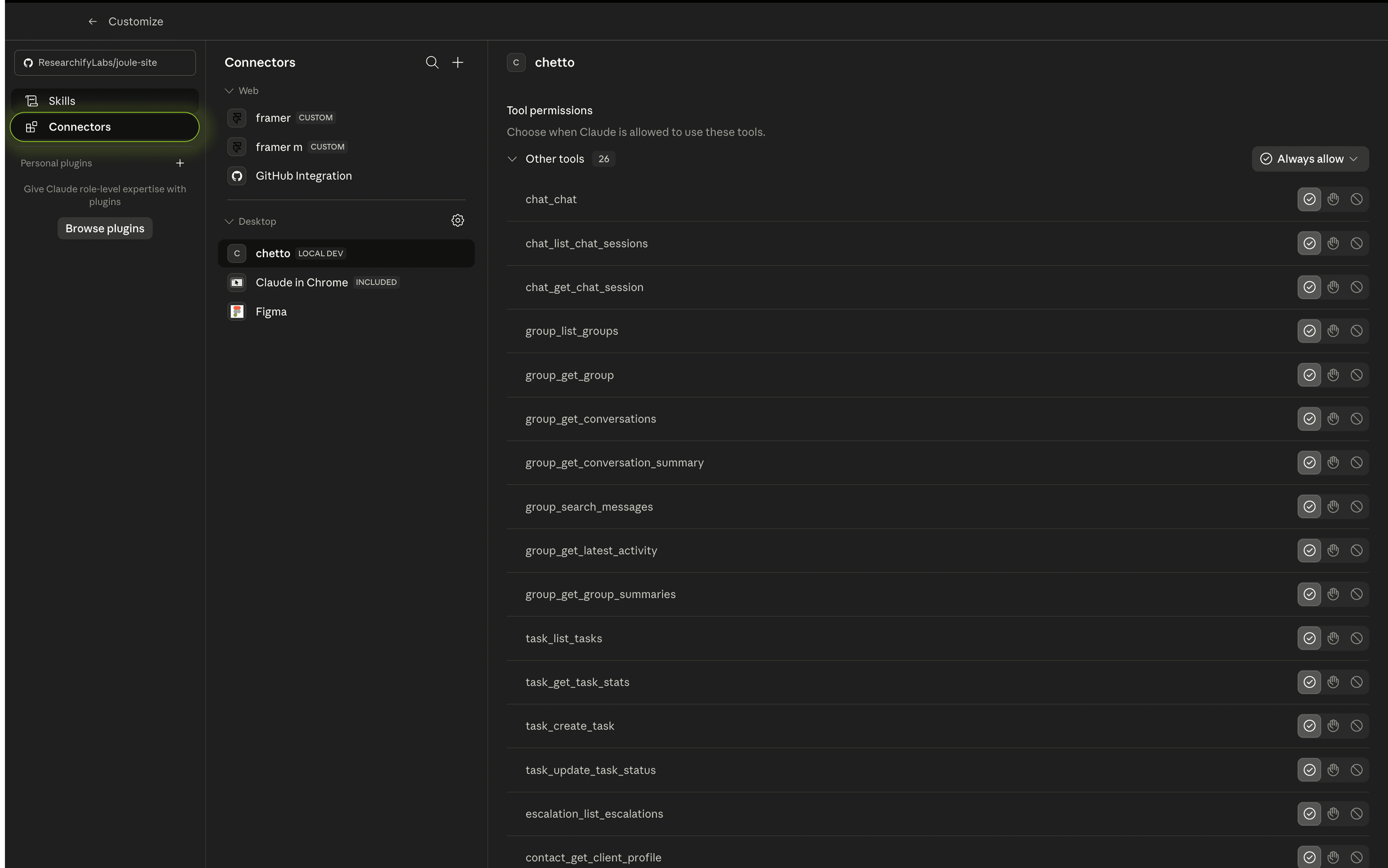
Step 1: Open Claude → Customize → Connectors and go to the connectors setup area.
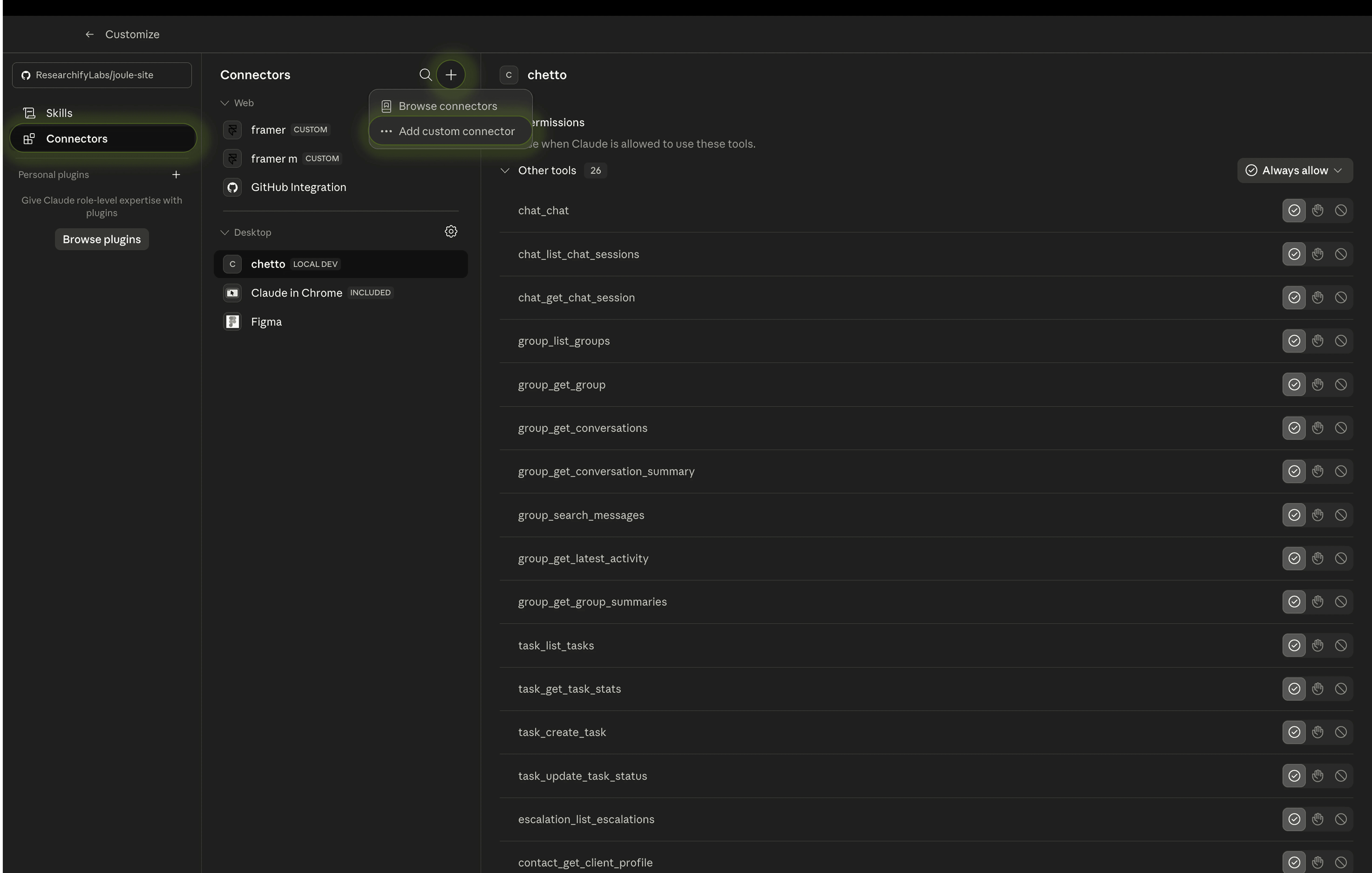
Step 2: Click the + icon and choose Add custom connector.
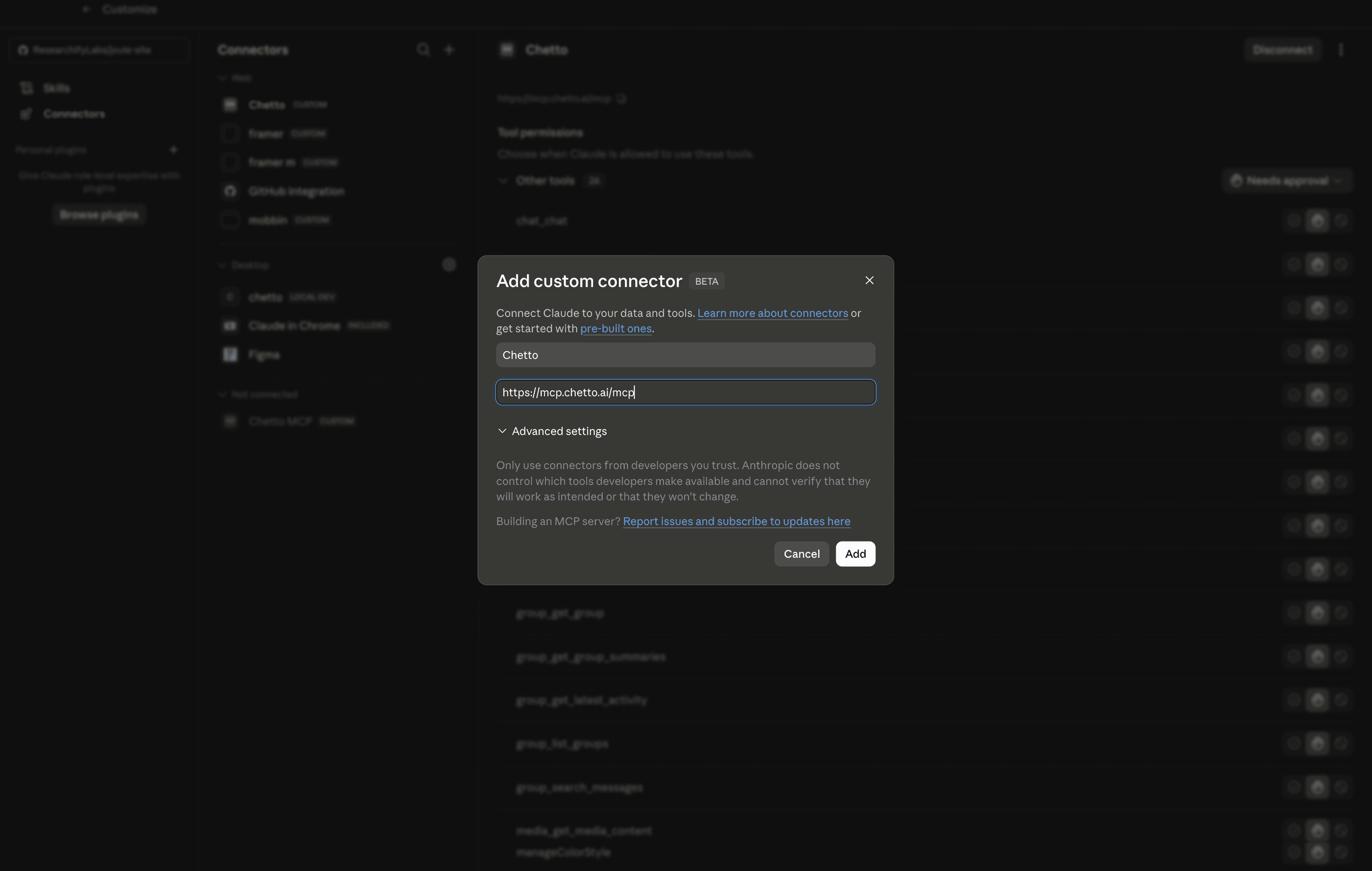
Step 3: Enter Chetto MCP as the connector name, add the MCP URL: https://mcp.chetto.ai/mcp , and click Add.
Step 4: Select Chetto MCP from the connector list and click Connect.
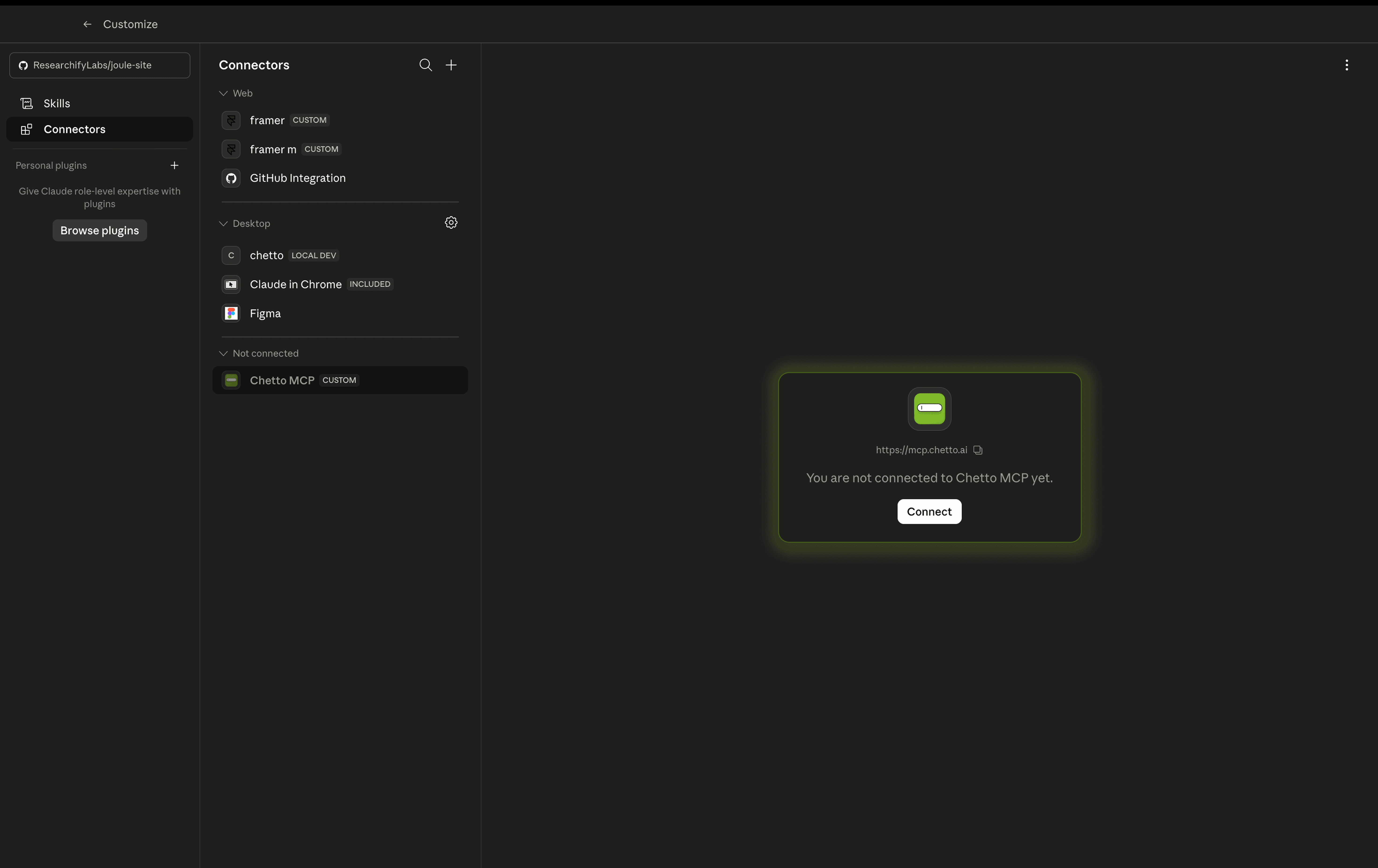
Step 5: Review the requested permissions and click Continue to connect Chetto with Claude.
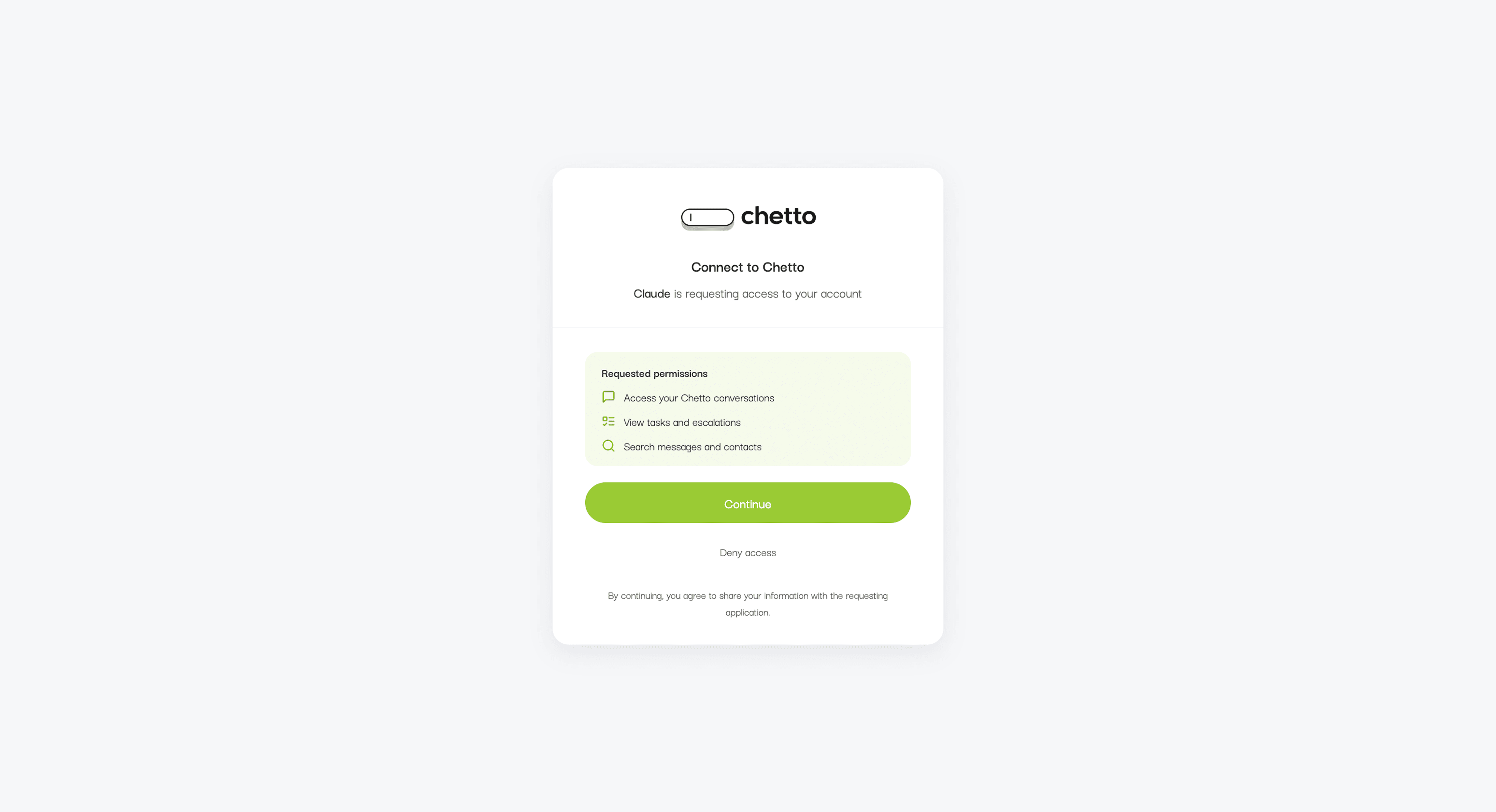
Step 6: Enter your phone number to verify your Chetto account with an OTP.
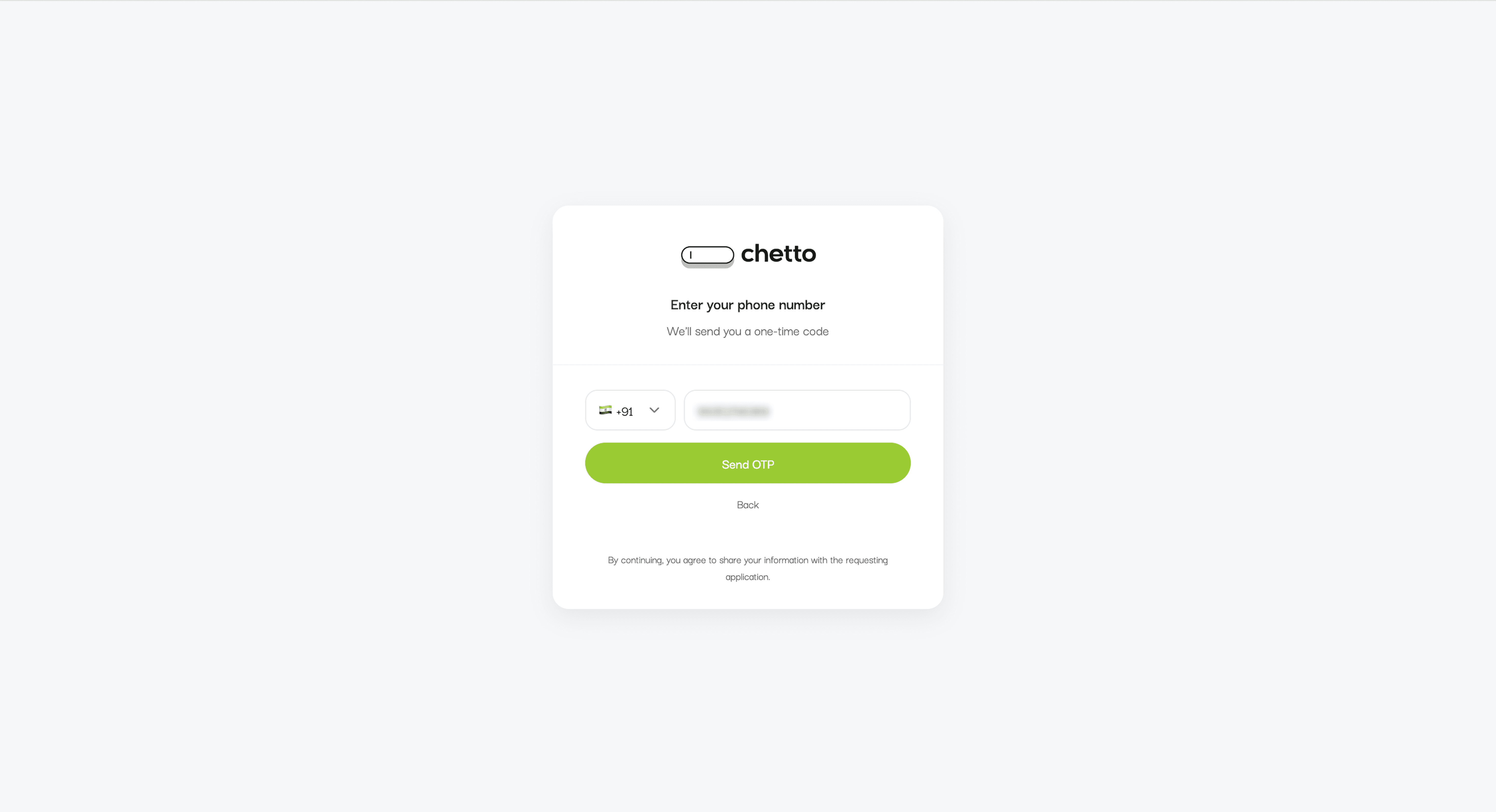
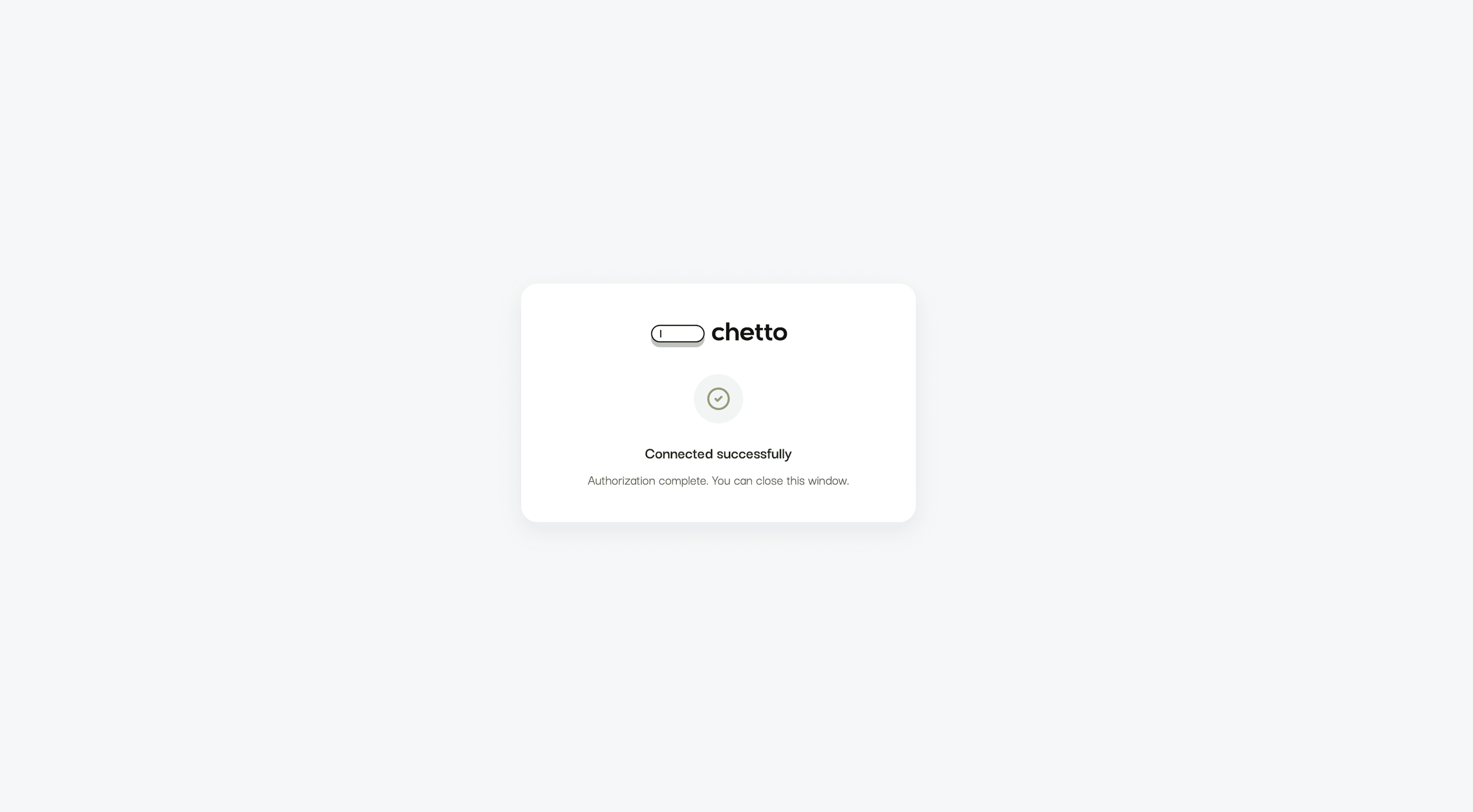
Step 7: Once verification is complete, Chetto MCP is successfully connected to Claude.
Why we built this
Chetto is built around the reality of how teams already work.
Work does not happen in one place. Context does not live in one screen. Teams move between conversations, dashboards, tools, and now AI interfaces.
Exposing the Chetto MCP Server is a step toward making Chetto easier to use inside that broader workflow.
For some teams, work starts and ends inside Chetto. For others, Chetto is the context layer they want to access from Claude and other AI-native tools.
MCP makes that possible.
Final thought
Business context should not be locked inside a single interface.
If your team already relies on Chetto for conversations, tasks, signals, and visibility, Chetto MCP Server makes that context easier to access from Claude and other MCP-compatible tools.
Chetto remains the source of context. Your AI tools become a better way to work with it.
AI tools are becoming a natural part of how teams work.
A team may track conversations, tasks, signals, and follow-ups in Chetto. Then they move to Claude or another AI tool to act.
But that switch often creates a gap.
The AI tool may be powerful, but without the right business context, it is still working with only part of the picture.
That is why we have exposed the Chetto MCP Server.
Why connect Chetto to Claude or other MCP-compatible tools
Chetto helps teams make sense of work that lives inside conversations.
It turns scattered communication into context, structure, and visibility. It helps teams track what matters, understand what is happening, and move work forward with more clarity.
Now that the Chetto MCP Server is available, teams can connect Chetto to Claude and other tools that support MCP.
This means your AI workflow does not have to start from scratch every time. Instead of manually copying information from one product to another, you can connect your MCP-compatible client to Chetto and work with the business context more directly.
What is Chetto MCP Server
Chetto MCP Server lets tools that support MCP connect to Chetto in a structured way.
MCP stands for Model Context Protocol. It is a standard that helps AI tools connect with external products and use their context more reliably.
In simple terms, this allows Claude and other MCP-compatible tools to work with Chetto more directly.
So instead of repeatedly pasting chat history, notes, or business context into an AI tool, you can expose Chetto via MCP and let the tool work with that context more cleanly.
What this helps teams do
When you connect Chetto to Claude or another MCP-compatible tool, you make it easier to bring your Chetto context into the AI workflows you already use.
This helps reduce manual copy-paste. It helps keep work grounded in the right context. It also makes it easier to move faster on analysis, summaries, planning, and follow-up workflows.
The exact experience depends on the MCP client you are using. But the core value remains the same: Chetto becomes easier to access from the tools where AI-assisted work is already happening.
How to enable Chetto MCP Server
Setting up Chetto MCP Server is simple.
Step 1: Open Claude → Customize → Connectors and go to the connectors setup area.
Step 2: Click the + icon and choose Add custom connector.
Step 3: Enter Chetto MCP as the connector name, add the MCP URL: https://mcp.chetto.ai/mcp , and click Add.
Step 4: Select Chetto MCP from the connector list and click Connect.
Step 5: Review the requested permissions and click Continue to connect Chetto with Claude.
Step 6: Enter your phone number to verify your Chetto account with an OTP.
Step 7: Once verification is complete, Chetto MCP is successfully connected to Claude.
Why we built this
Chetto is built around the reality of how teams already work.
Work does not happen in one place. Context does not live in one screen. Teams move between conversations, dashboards, tools, and now AI interfaces.
Exposing the Chetto MCP Server is a step toward making Chetto easier to use inside that broader workflow.
For some teams, work starts and ends inside Chetto. For others, Chetto is the context layer they want to access from Claude and other AI-native tools.
MCP makes that possible.
Final thought
Business context should not be locked inside a single interface.
If your team already relies on Chetto for conversations, tasks, signals, and visibility, Chetto MCP Server makes that context easier to access from Claude and other MCP-compatible tools.
Chetto remains the source of context. Your AI tools become a better way to work with it.

Blog written by
Ritesh Mathur
Co-Founder